FAQs
How to play puzzles?
Move and rotate the card to restore the original picuture:
Move the card by dragging it with mouse or with finger on touch screen and it will be placed in the nearest empty grid on the canvas when you release the mouse button.
Rotate the card by clicking the rotate button to the left of the canvas.
For type N2 and type S2, cards on the canvas can be moved as a whole by clicking the direction buttons shown on the right. Notice, you can only do so when the edge column along the moving direction is empty. For example, if you want move all cards to the right, the rightmost column must be empty.


Start

Move
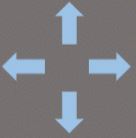
as a whole
Message will be shown on the screen when the task is completed.
There are five types of puzzles at present and you can select which type to play from the menu or on the left column of the page. Within each type, you may select which picture to play using menu "Selecting Picture" on top-right of the page.
The five types are:
Type H: there are nine pieces of cards and a small version of the original picture is always displayed to the right of the canvas. You can play it directly when entering this page or after selecting a picure.
Type N1: there are twelve pieces of cards and the original picture is displayed on the canvas before start. When you click the start button to the left of the canvas, the original picture disappears, and then you can start to play.
Type N2: there are twenty-four pieces of cards and the original picture is displayed on the canvas before start. When you click the start button to the left of the canvas, the original picture disappears, and then you can start to play.
Type S1: there are twelve pieces of cards. The original picture is not displayed. You can play it directly when entering this page or after selecting a picure.
Type S2: there are twenty-four pieces of cards. The original picture is not displayed. You can play it directly when entering this page or after selecting a picure.
How to make my own puzzles?
On the left panel of each puzzle page or under the menu Puzzles on the top menu bar, select Make a Puzzle. Detailed steps are described in the page.
When you select an image, it will appear on the right panel. If you have prepared an image with specified width and height, i.e, 510px:510px for type H, 680px:510px for type N1 and S1, and 708px:472px for type N2 and S2, you may upload it directly after select the image. Otherwise, you may adjust (move or zoom in/out) the image on the right panel to find the part of the image desired to upload. Then go to step 4.
At Step 4, uploading the image, the puzzle is created. The process may take about 10-20 seconds, and then link to this new puzzle will appear on the bottom of the column. Then you may play the puzzle or send the link to your friends to invite them to play.
Note:
1) Select puzzle type before loading image.
2) The interruption of loading image or fail to produce the puzzle may caused by slow network transmission.
3) To make another puzzle, you have to refresh this page.
How long will my puzzle be kept online?
At present, your puzzle will be kept for two weeks.